Office Ergonomics
Office Ergonomics
Cumulative Trauma Disorders" (CTDs) or "Repetitive Strain Injuries" (RSIs), are caused by repetitive motions that would not result in undue stress or harm if only performed once. Carpal tunnel syndrome, Tendonitis, Tenosynovitis, DeQuarvain's Syndrome, Thoracic Outlet Syndrome, many back injuries, and several other conditions may result from repetitive motions.
Environmental factors could include such things as indoor air quality or excessive noise. "Sick building syndrome," with its accompanying headaches, congestion, fatigue and even rashes, can result from poor air quality in a building or office. Excessive noise around heavy machinery or equipment can cause permanent hearing loss. Improper lighting can cause eyestrain and headaches, especially in conjunction with a computer monitor.
It is important to listen to the signals your body gives you. If you suffer pain in the wrists or hands after a long day of typing, examine your work area and work practices to see if they may be causing the problems. Learn to make adjustments. Raise or lower chairs to avoid typing with your wrists at an odd angle. Adjust computer monitors to avoid glare. Take frequent breaks from repetitive tasks to give your body a rest. Always use proper lifting techniques. Sometimes small modifications to work procedures, posture, habits, and/or work station design can make a big difference in the way you feel at the end of a day.
To understand Cumulative Trauma Disorders (CTDs), it is necessary to understand how the body works. Body movements are produced by contracting and relaxing muscles. The muscles are attached to bones by tendons. Tendons are smooth, and in some parts of the body they glide back and forth inside tubes called synovial sheats. The sheat produces a lubricant called synovial fluid to help the tendons glide easily. CTDs result when repeated stress is placed on the tendons, muscles, or nerves causing inflammation or damage.
The following are some of the most common CTDs:
- Tendonitis - inflammation of the tendons
- Tenosynovitis - inflammation of the synovial sheat
- Carpal Tunnel Syndrome - results when the median nerve is compressed, either from the swelling of tendons and sheats or from repeated bending of the wrist
Some of the conditions that may lead to CTDs are:
- Repetition - long or concentrated hours of typing or using a mouse
- Posture - long hours of sitting in the same position while typing, especially if it is in an uncomfortable or poorly supported position, or if the wrists are bent
- Lack of Rest - intensive hours at the keyboard with few breaks
Symptoms of CTDs:
- Tingling or numbness in the hands or fingers
- Pain in fingers, hands, wrists, or even shooting up into the arms or forearms
- Loss of strength or coordination in the hands
- Numbness or discomfort in the hands which wakes you up at night
Carpal Tunnel Syndrome
According to the Medical Multimedia Group, an excellent source of on-line medical information, Carpal Tunnel Syndrome is a common problem that affects the hand and wrist. This condition, or syndrome, has become the focus of much attention in the last few years due to suggestions that it may be linked to occupations that require repetitive use of the hands - such as typing.
For more detailed information on Carpal Tunnel Syndrome, including some great graphics, check out MMG's Carpal Tunnel site.
Preventing CTDs to Hands and Wrists
One of the keys to preventing CTDs is to keep your hands and wrists in as "neutral" a position as possible. In other words, you want to avoid typing with your wrist bent to either side, or up or down. You do not want your wrists to be flexed in any direction.
The neutral position may be obtained by adjusting your desk height, chair height, or keyboard position. Here are some tips for preventing hand and wrist CTDs:
- The keyboard should be slightly lower than normal desk height. If it is not low enough, try raising your chair height. Prevent your legs from dangling by using a footrest.
- "Home row" of keys should be at elbow level.
- While typing, it is best not to rest your wrists, and they should not be bent up, down, or to the side. This may be easier if the back edge of the keyboard is tilted down slightly, away from you. The knuckle, wrist, and top of forearm should form a straight line. Wrist supports or rests give you a place to rest your hands only when pausing from typing, not while you are typing.
- Do not pound the keys. Use a light touch.
- Use two hands to perform double key operations like Ctrl-C or Alt-F instead of twisting one hand to do it.
- The elbows should form a 90 degree angle while "hanging" at the sides from the shoulders. The shoulders should remain relaxed in a lowered position while typing.
- Take lots of breaks to stretch and relax. Take frequent "micro-breaks" (lasting a few seconds or so) as well as longer (several minute) breaks every hour or so.
- Hold the mouse lightly.
- Keep your hands and arms warm.
If you are routinely experiencing symptoms of CTDs in your hands, wrists or arms, you probably need to see a doctor. Pain or numbness is a good indication that damage is being done, and early treatment is essential to limit that damage. It is not recommended that you try to treat CTDs by yourself. In some cases, for example, wrist supports or splints may make matters worse. Always check with a qualified physician before using such a device.
Good Links to Hand/Wrist Ergonomic Information
Eyestrain is another ergonomic problem frequently associated with the use of computers and Video Display Terminals (VDTs). Keep in mind that the solutions presented here are only recommendations. If following these recommendations seems to make matters worse, try something else! If you aren't experiencing headaches or eyestrain while you work at the computer, don't worry about making changes; obviously your setup works for you. As the saying goes, "you don't need to fix what isn't broken."
Symptoms of eyestrain may be:
- Sore, tired, itchy, dry, or burning eyes
- Headaches
- Difficulty focusing between the VDT and source documents
- Blurred or double vision
- Color fringes / after images
- Increased sensitivity to light
These symptoms may be caused by:
- Improper Lighting: If the light in the work area is too bright or too dim, the human eye has to work extra hard to compensate for these harsh environmental factors. People may not even be aware that their eyes are under duress, but over time they may develop symptoms of eyestrain.
- Solution: Use indirect, ambient lighting and an adjustable light source at the desk, where extra illumination is required.
- Glare: Glare can be caused by sources of light such as windows, lamps, or overhead lighting. Look at your monitor screen to see if there are any bright blotches of light. While you may not be conscious of this irritation, it can cause eyestrain over the course of a long day. Glare can also be caused by too much contrast between the screen background and the displayed text.
- Solution: Adjust your monitor so that it is not reflecting the light source. Tilt the monitor down so that it doesn't reflect overhead lights, or move it perpendicular to windows. Close shades or blinds if the computer cannot be moved. Move lamps so that they are not reflected directly in the monitor. Use glare screens.
- Eyewear: Many computer users wear bifocals or trifocal lenses fitted for reading print and distance viewing. Sometimes these prescriptions may not be adequate for computer work.
- Solution: If you wear glasses of any sort and frequently experience headaches while working at a computer, you should probably check with your eye doctor to make sure you are wearing the correct prescription for such work.
- Viewing Angle and Distance: If your monitor is too far away, you may have to strain to read the print. Likewise, if it is too close, you may also strain your eyes. If the monitor is too high, you will have to angle your neck to look up at it, which could cause your neck to be sore, and may contribute to headaches. Also, when you are continually looking up, you may not fully close your eyes when you blink, and this can cause your eyes to dry out.
- Solution: Some literature will suggest keeping the monitor between 18-30 inches from the user, with the first line of text just slightly below eye level. However, you should always find out what is most comfortable to you. You may also want the keyboard directly in front of the monitor. If the keyboard/monitor is off to one side, the distance to the monitor may be slightly different for each eye, causing them to focus separately.
- Uninterrupted Focus on the Screen: When people concentrate, they blink less often. Sometimes they concentrate so hard that they blink only once per minute, instead of the normal once every five seconds. This, too, will cause the eyes to dry out and become irritated.
- Solution: Take micro-breaks! Frequently look up from your monitor and focus on an object several feet away. Make a conscious effort to blink.
- VDT and Document Holder Location: If the document holder is below the VDT or off to the side, each time your eyes look from one source to the other, your pupils have to adjust. If you have to do this for long periods of time, it can cause headaches and eyestrain.
- Solution: Place document holder at the same level, angle, and distance as the screen to avoid having to shift eye focus.
- Dust on Screen: A buildup of dust on the screen can make it hard to distinguish characters. This may also contribute to glare and reflection problems.
- Solution: Dust off your monitor every day.
Links to Eyestrain and VDT Information
- Computers and Eyestrain (American Academy of Ophthalmology)
- The EyeCare Connection (by Larry Brickford O.D.)
- Ocular Tendonitis (Dr. David F. Sucher)
- Reducing Eyestrain from Video and Computer Monitors (Charles A Poynton)
- VDTs: How to Avoid a Painful Desk Job (Univ Virginia EHS)
- Video Display Terminals (OSHA)
Workstation design can have a big impact on your overall health and well being. Some problems have already been discussed, but there are a multitude of other discomforts which can result from ergonomically incorrect computer workstation set-ups. For example, poor chairs and/or bad posture can cause lower back strain; or a chair that is too high can cause circulation loss in legs and feet.
The chair is actually a very important part of a comfortable workstation. You want a chair that is lightly padded or upholstered. Adjust the height so that the backs of the knees are not in contact with the seat, and your feet are flat on the floor or footrest. Adjust the back of the chair so that it presses against the small of the back. If the chairback is not adjustable, some people may find it comfortable to use a small pillow for support instead.
Below is a diagram that outlines the basics of an ergonomically correct workstation.
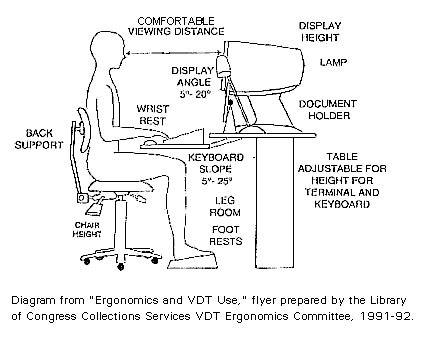
It is important to listen to the signals your body sends to you. If you find that your shoulders ache after a long day at the computer, see how you are holding your shoulders while you are working. Are you holding them up to keep your wrists at a comfortable angle? If so, maybe you need to raise your chair up so you can relax your shoulders while maintaining a comfortable angle for your wrists. If that places an uncomfortable pressure on the back of your legs because of the chair edge, get a footrest. Your body will tell you where the problems are. You simply need to analyze what you are doing and correct potential problems.
Additional Ergonomics Information and Links
- Ergonomics Links
- VDTs: How to Avoid a Painful Desk Job (Univ Virginia EHS)