Local Government Services Bureau Portal Access
Local Government Services Bureau Portal Access
Welcome to the new Local Government Services Bureau Portal Resources (LGSB) page!
To access the portal, users will need to register with their entities in the new system. This quick process is only needed for the first login configuration. Instructions for Local Government Entity Employees and Audit Firm Employees can be found below in the login instructions.
If you have questions, please contact our Help Desk:
- (406) 444-9101
- LGSBHelp@mt.gov
The LGSB Portal is compatible with Chrome, Edge, Safari and most mobile browsers.
Reporting Dates
Submit a Report Online
Okta provides a convenient way to access authorized eGovernment services using one username and password.
- Navigate to the Local Government Services Bureau Portal and click “Login” in the upper right-hand corner of the page.
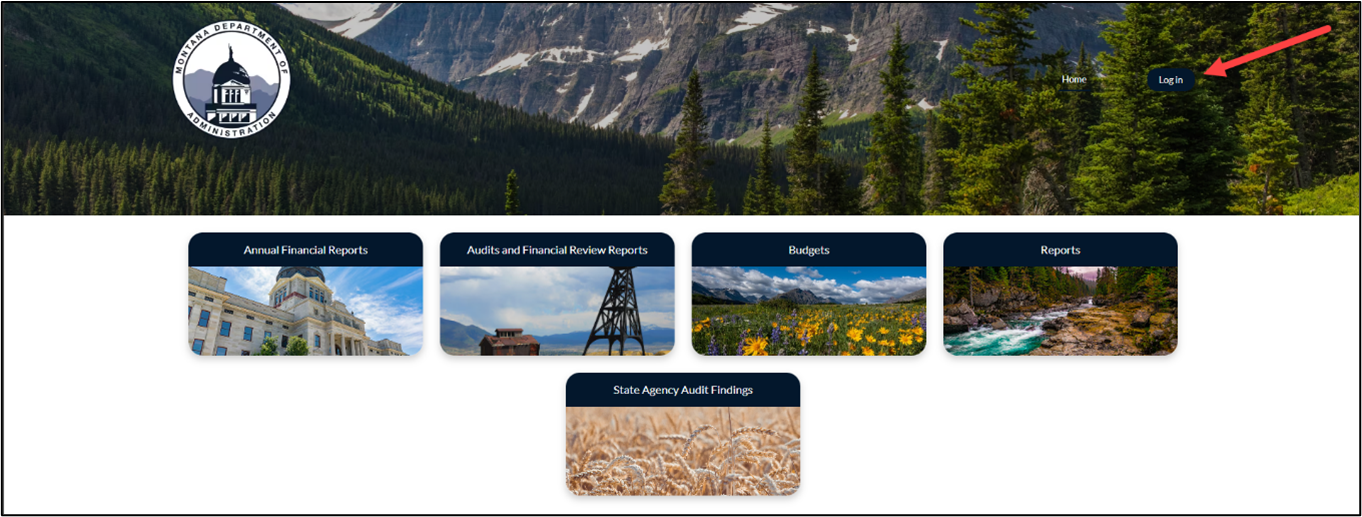
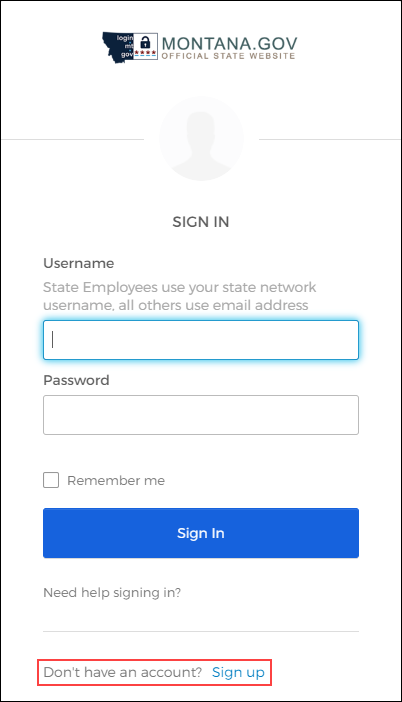
- You will be prompted to provide your Okta Login information.
- If you do not have an Okta account, click the Sign-up link next to “Don’t have an Account.”
- See the Okta Help page for assistance using Okta
- Provide your Okta credentials and click “Sign In.”
- You will be logged into Okta.
- Find the LGSB Portal in your applications or by searching for it and clicking on the application.

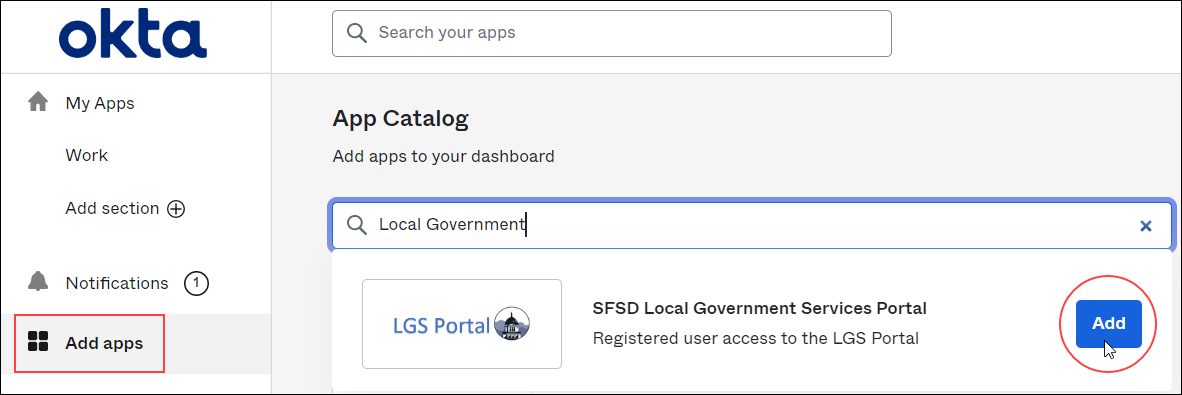
- If the application does not come up, you will need to add it. Click on the “Add apps” menu item on the left, search for the application, and add it.
- Then, proceed to “My Apps” to find the application to access the LGSB portal.
- If you experience any issues, please contact our Local Government Services Bureau Help Desk
- (406) 444-9101
- LGSBHelp@mt.gov
Becoming a “Registered User” associates your LGSB Portal account with a local government entity and provides you with additional functionality.
- After verification through Okta, you will be directed to the LGSB Portal Registration screen.
- Enter your email address and click next to continue. It's important to use the same email you used for logging into your Okta account.
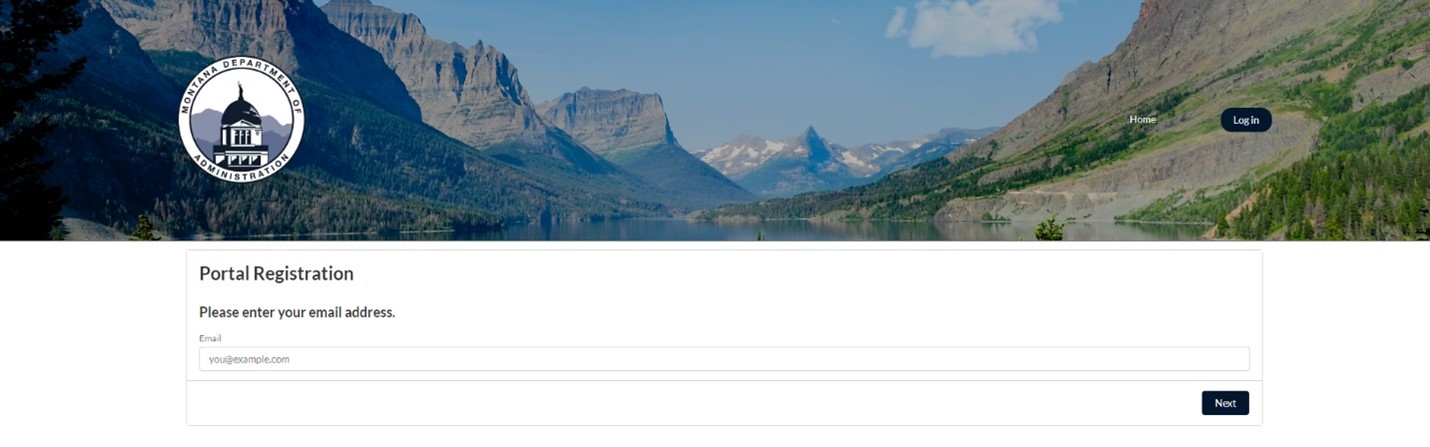
- Next, you will be directed to choose a user type:
- Choose the Local Government Employee user type and click next to continue.
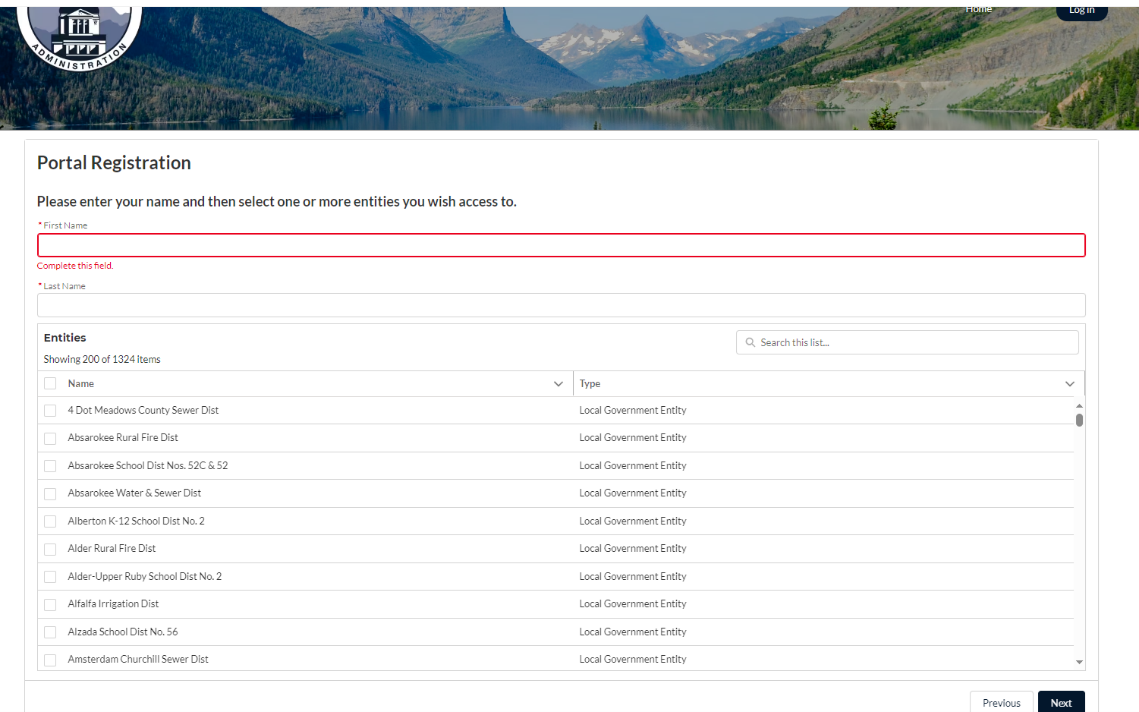
- For Local Government Employee, enter your first and last name. The first and last name may be prepopulated (based on contact information in our system). If this information is incorrect, please correct the names within the fields before selecting "next." Select the entity or entities you are associated with by selecting the box next to the corresponding entity and click next to continue.
- Note - The system will allow you to select multiple entities.
- After you complete the registration process, you will be brought to the final page:
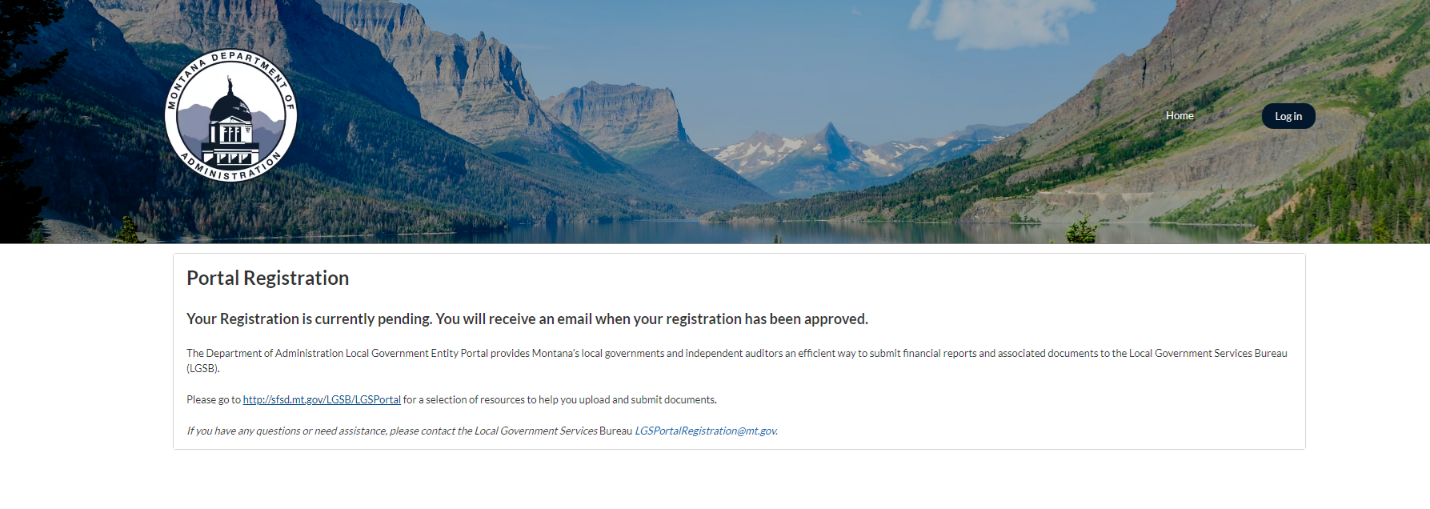
- The Local Government Services Bureau will review the registration. You will receive an email once your registration has been approved.
- Once approved, navigate to the Local Government Services Bureau Portal and select “Log In.”
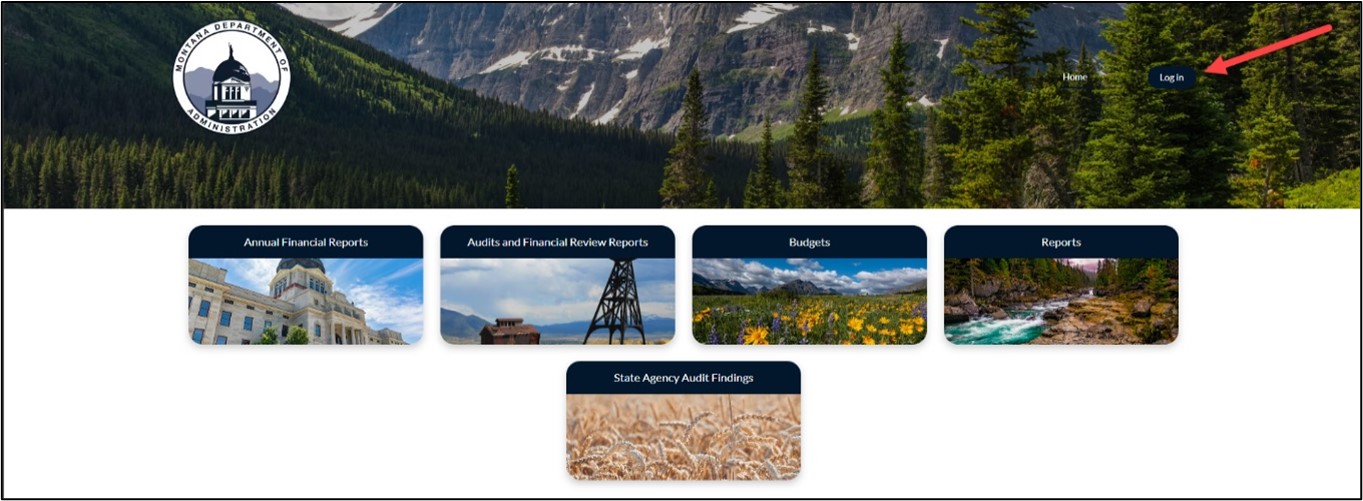
- You will then be able to access applicable pages for your selected user type.
- If you experience any issues, please contact our Local Government Services Bureau Help Desk:
- (406) 444-9101
- LGSBHelp@mt.gov
Becoming a “Registered User” associates your LGSB Portal account with a local government entity and provides you with additional functionality.
- After verification through Okta, you will be directed to the LGSB Portal Registration screen.
- Enter your email address and click next to continue. It's important to use the same email address you used for Okta.
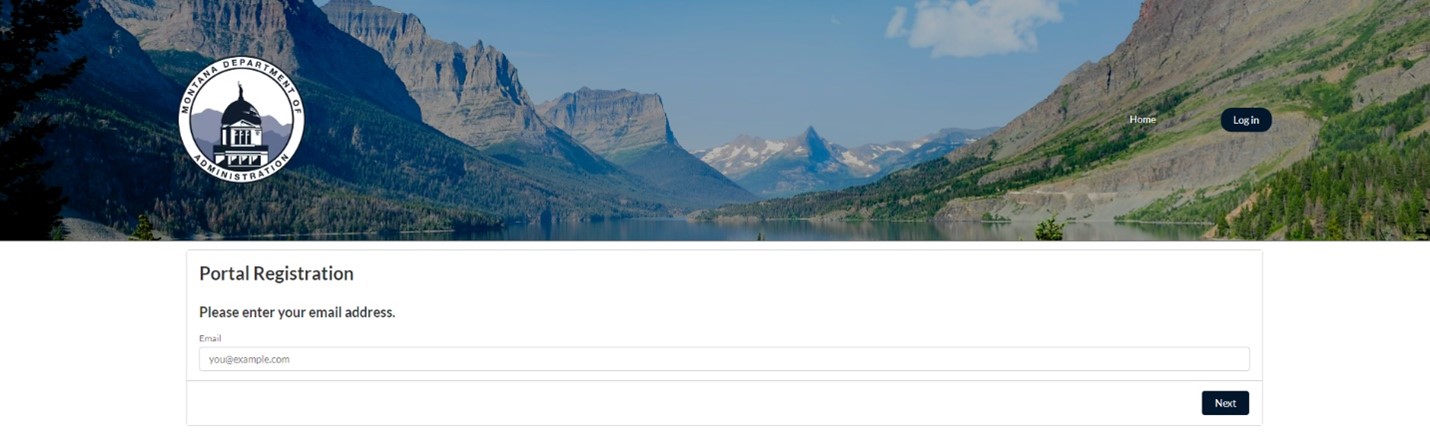
- Enter your email address and click next to continue. It's important to use the same email address you used for Okta.
- Next, you will be directed to choose a user type:
- Choose the Audit Firm Employee user type and click next to continue.
- For Audit Firm Employee, enter your first and last name. The first and last names may be prepopulated (based on contact information in our system). If this information is incorrect, please correct the names within the fields before selecting "next." Select the Audit Firm you are associated with by selecting the box next to the corresponding firm and click next to continue.
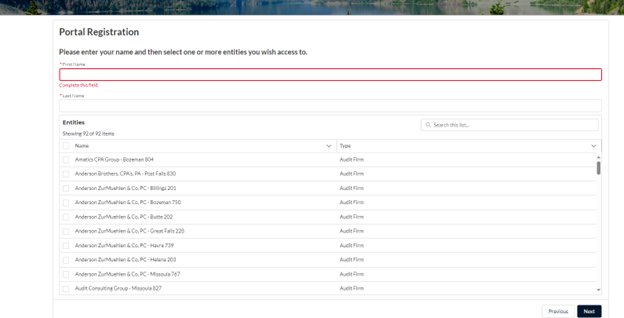
- After you complete the registration process, you will be brought to the final page:
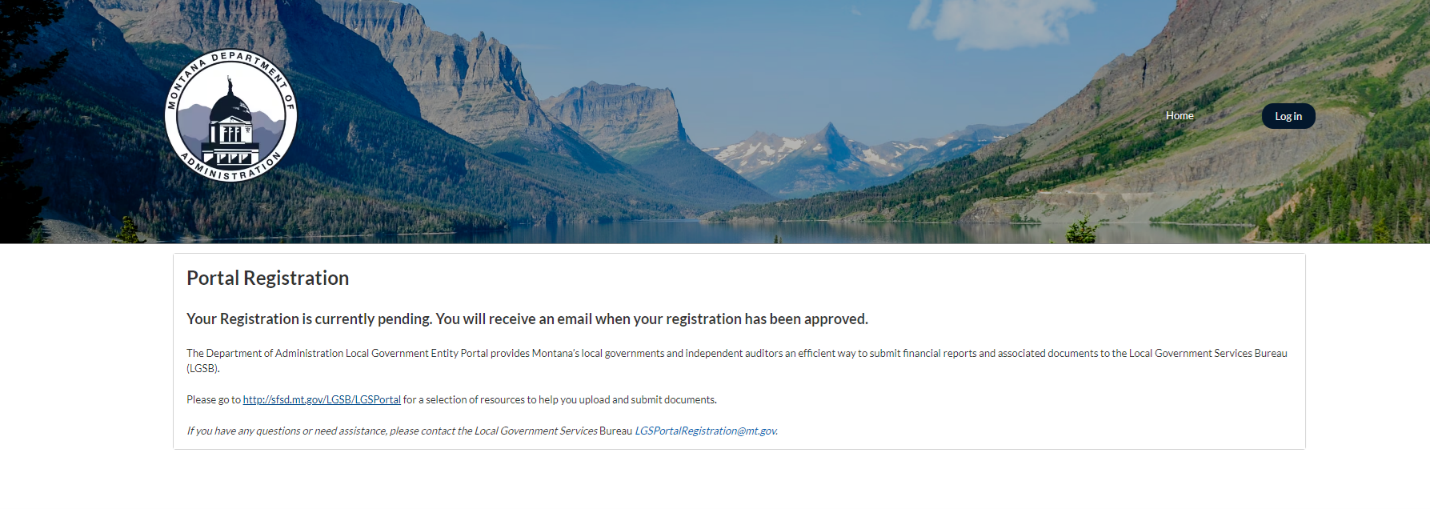
- The Local Government Services Bureau will review the registration. You will receive an email once your registration has been approved.
- Once approved, navigate to the Local Government Services Bureau Portal and select “Log In.”
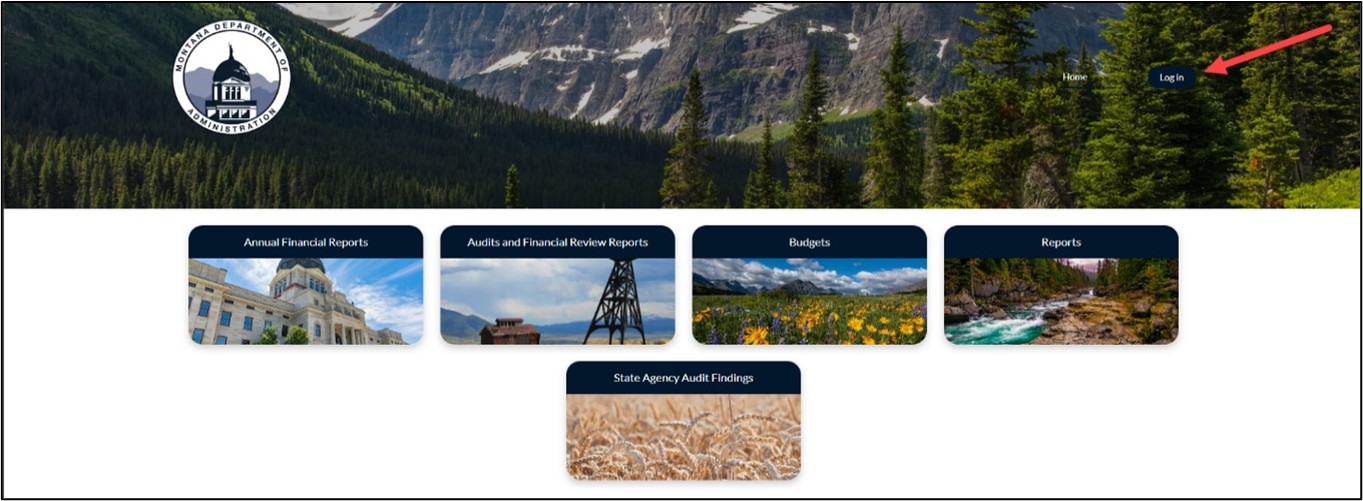
- You will then be able to access applicable pages for your selected user type.
- If you experience any issues, please contact our Local Government Services Bureau Help Desk:
- (406) 444-9101
- LGSBHelp@mt.gov
All the forms and information needed to complete Annual Financial Reports (AFRs), Budgets, Audit Reports, Financial Reviews, and Contracts can be found on our website.
- Visit the Accounting & Annual Financial Report Resources page to find:
- AFR Forms
- Visit the Budget Resources page to find:
- Budget Forms
- Visit the Audit & Financial Review Resources page to find information about:
- Audits
- Financial Reviews
- Contracts
All Local Governments are responsible for submitting an Annual Financial Report. Cities, Counties and Towns are also required to submit a Budget. If an Audit Report or Financial Review is required, the Local Government is also responsible for ensuring the report is submitted by the contracted Audit Firm.
Contact the Help Desk if you have any questions at LGSBHelp@mt.gov.
- Select the "Annual Financial Reports" tile:
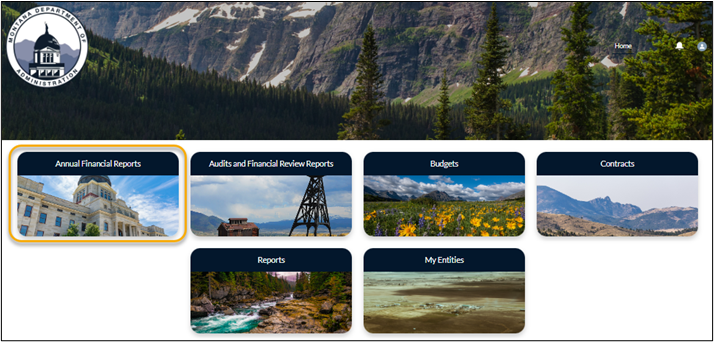
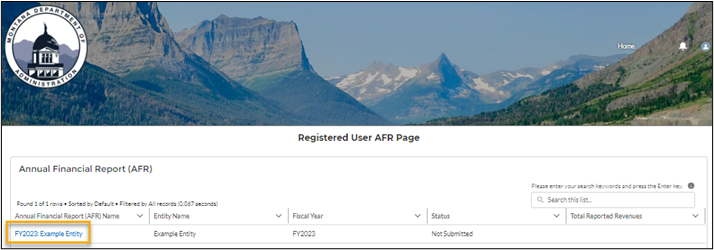
- Select the Blue Hyperlink in the “Annual Financial Report (AFR) Name” Column to open the AFR Record:
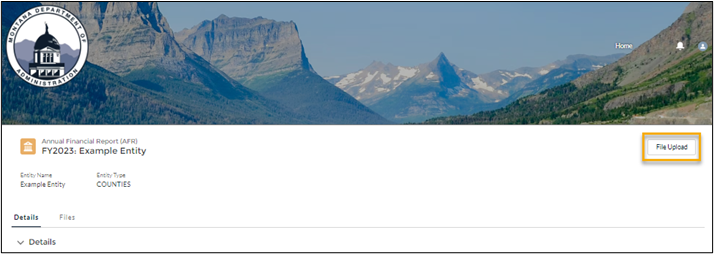
- Select the “File Upload” Button in the upper-right corner:
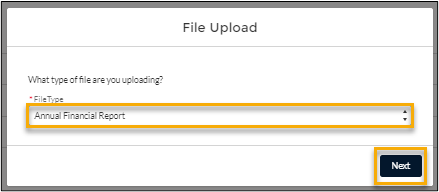
- In the “File Type” field, select “Annual Financial Report” from the drop-down options and select the “Next” Button:
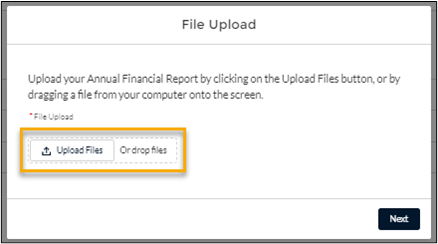
- Select the “Upload Files” Button or drag and drop your file:
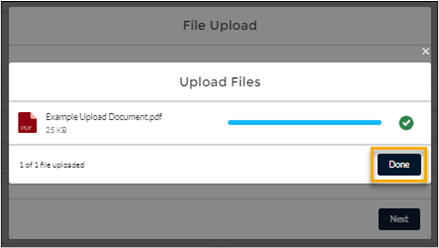
- After the file is uploaded (visualized by a green checkmark), select the “Done” Button:
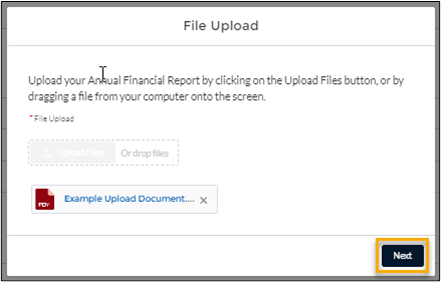
- Select the “Next” Button:
- You will receive a message that the AFR was successfully uploaded, select the “Finish” Button:
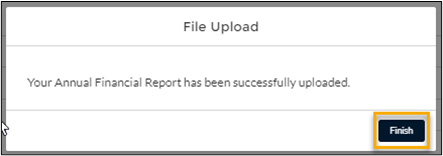
- At this point, the AFR has been successfully uploaded.
- If your Filing Fee Form was not included in your AFR Document (separate PDF), repeat steps 3 through 8 (selecting the “Filing Fee Form” option on step 4) to upload your Filing Fee Form.
- If you are submitting an AFR for a City, County, or Town, repeat steps 3 through 8. To upload the Trial Balance and/or Trial Balance Certification, select each option in step 4.
- Select the “Budgets” Tile:
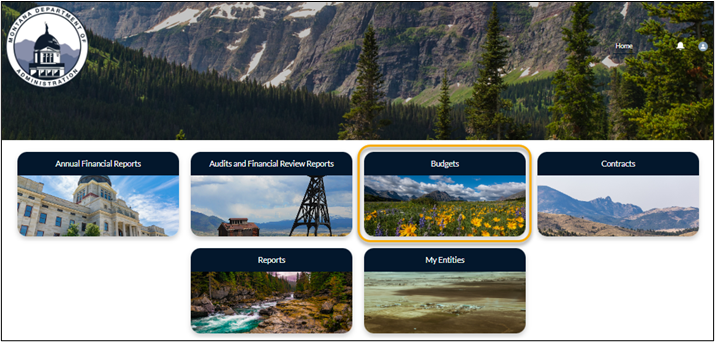
- Select the Blue Hyperlink in the “Budget Name” Column to open the Budget Record:
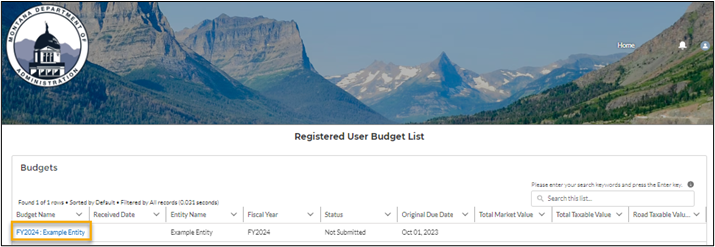
- Select the “Upload Budget Document” Button in the upper-right corner:
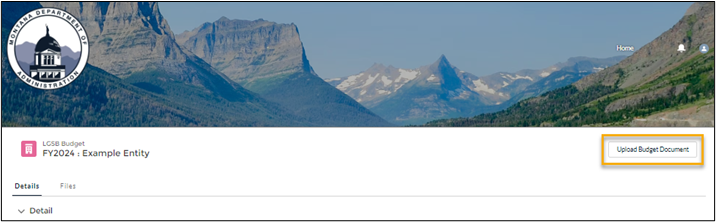
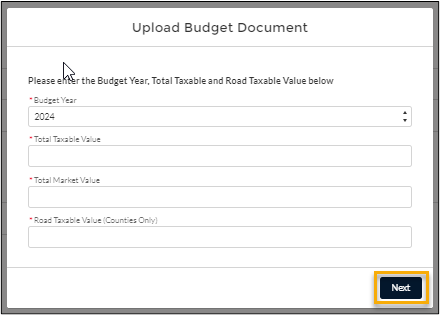
- Complete the prompted fields and select the “Next” Button:
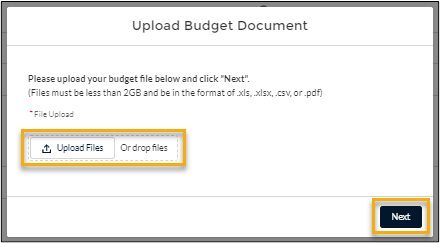
- Select the “Upload Files” Button or drag and drop your file:
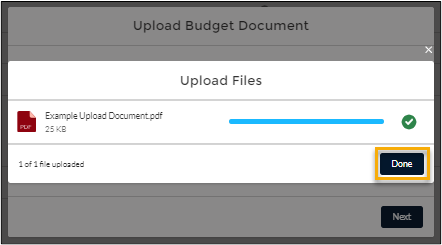
- After the file is uploaded (visualized by a green checkmark), select the “Done” Button:
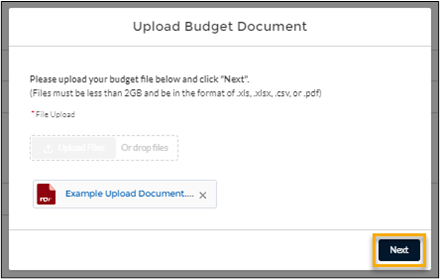
- Select the “Next” Button:
- You will receive a message that the Budget was successfully uploaded, select the “Finish” Button:
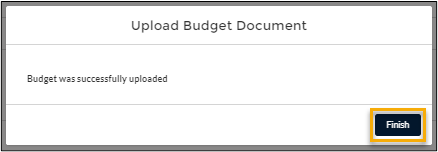
- At this point, your Budget has been successfully uploaded.
- Select the “Contracts” Tile
- Select the “Upload New Contract” Link in the upper-right corner
- In the “File Type” field, select “Contract” from the drop-down options and select the “Next” Button
- Select the checkbox for the other applicable party on the Contract (“Audit Firm” or “Local Government Entity Registered User”), select the “Contract Year” and select the “Next” Button
- Select the “Upload Files” Button or drag and drop your file
- After the file is uploaded (visualized by a green checkmark), select the “Done” Button
- Select the “Next” Button
- You will receive a message that the Contract was successfully uploaded; select the “Next” Button
- At this point, your Contract has been successfully uploaded.
- Select the “Audits and Financial Review Reports” Tile:
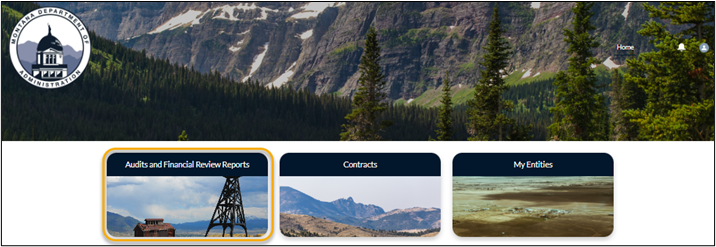
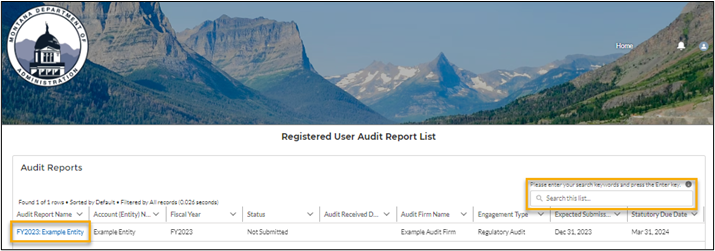
- Select the Blue Hyperlink in the “Audit Report Name” Column to open the Audit or Financial Review Record:
- Tip: You can search for specific entities by entering their name in the “Search this list…” field to reduce the results displayed.
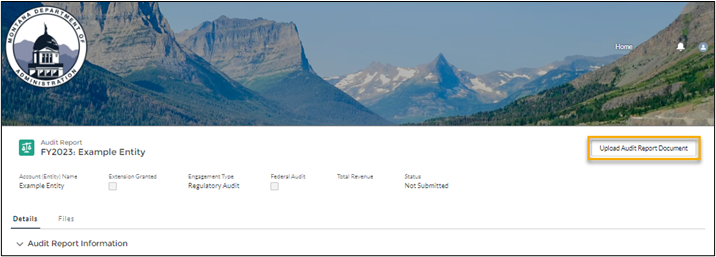
- Select the “Upload Audit Report Document” Button in the upper-right corner:
- In the “Type of Document Field” field, select the applicable drop-down option (“Audit Report” or “Financial Review”) and select the “Next” Button:
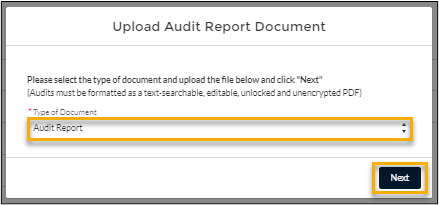
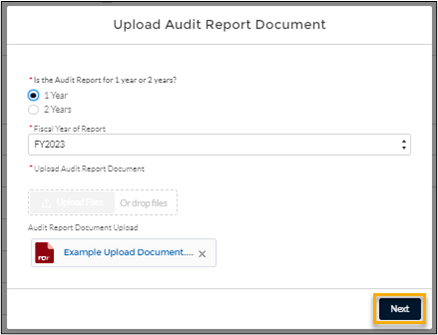
- Complete the prompted fields and select the “Next” Button:
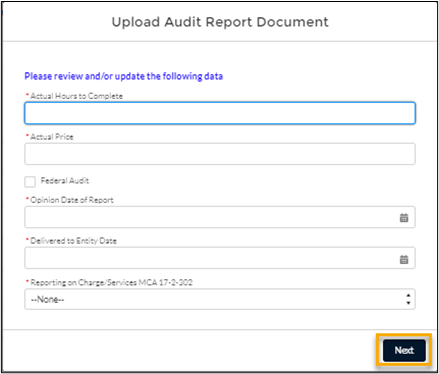
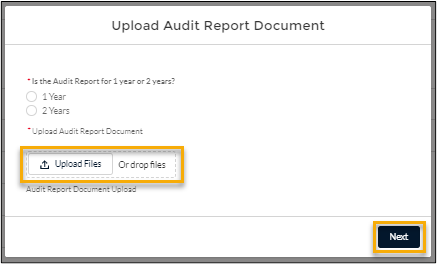
- Complete the prompted fields and select the “Upload Files” Button or drag and drop the file:
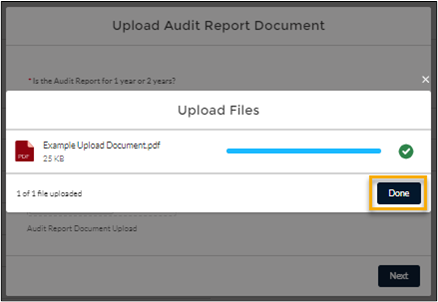
- After the file is uploaded (visualized by a green checkmark), select the “Done” Button:
- Select the “Next” Button:
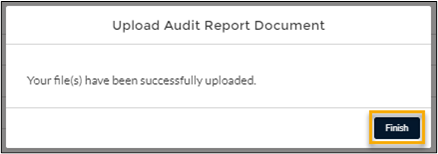
- You will receive a message that the File was successfully uploaded, select the “Finish” Button:
- At this point, your Audit or Financial Review Report has been successfully uploaded.
Frequently Asked Questions
The Local Government Services Bureau will evaluate your registration request and send an email to the registered contact after it has been approved. If you don’t receive an approval email within three business days, please contact us at LGSBHelp@mt.gov.
To request access to an additional entity, please follow the instructions below:
- Log in to the Portal
- Select the “My Entities” Tile
- Select the “Request Additional Entities” Button in the lower-right corner
- Select the checkbox next to the additional entities you are requesting access to
- Select “Next”
Your request has been submitted and is currently Pending. Once your request has been reviewed and approved, you will receive an email from LGSB.
Please see "Submit a Report Online" above and follow the instructions for your applicable record type.
Additional Information
Quick Links
There Was A Problem Logging You In
Okta Help has resources to assist if you are having issues accessing or creating your Okta account.
To help Local Government Services identify why you can't access the portal, please navigate to Okta and enter your username and password. Select the Sign up link if you don't have an account.
Once you've successfully accessed your Okta account, you can find the Local Government Services Portal in your applications or by typing "Local Government Services" into the search and clicking on the application:

If the application does not come up, you will need to add it to your applications. Click on the Add apps menu item on the left, search for the application, and add it:
If you experience any issues, please contact our Help Desk and provide us with your email address.